Primary Driving Controls and Corner Drifting
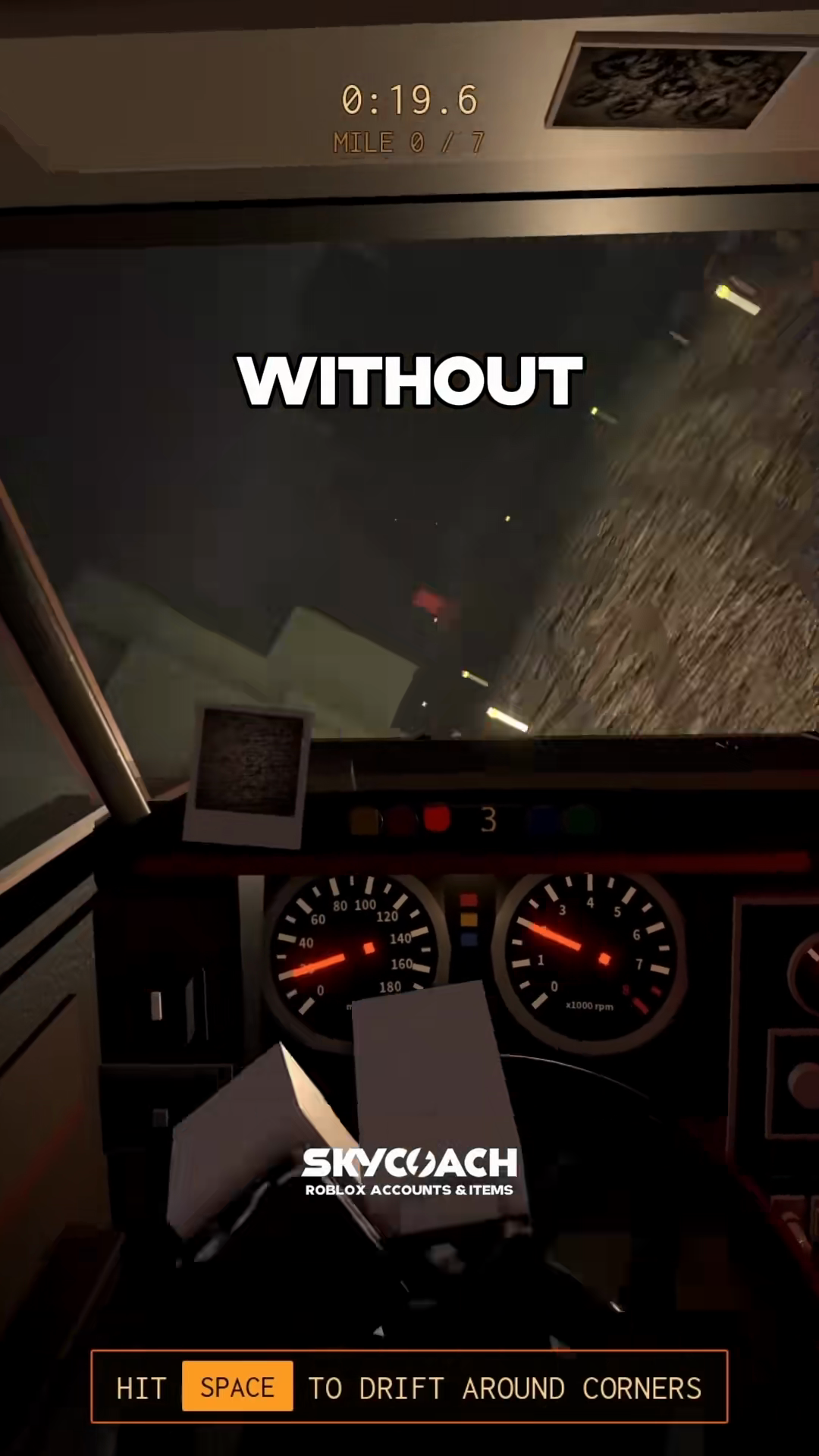
The cockpit view below shows the drift instruction hint alongside the timer and mile indicator.
Steering and throttle use standard keyboard inputs, while cornering uses handbrake drifting:
| Key | Function | What You See On Screen |
|---|---|---|
W |
Accelerate / Drive | The secondary key hint lists drive |
S |
Brake | The secondary key hint lists brake |
A / D |
Steer Left / Right | The secondary key hint lists steering |
Space |
Handbrake Drift | The captured tutorial says to hit Space to drift |
When approaching a turn:
- On a practice attempt, approach a bend with enough room to react to the drift prompt.
- Begin turning toward the inside of the curve using
AorD. - Use
Spaceas the tutorial instructs. The source does not specify a required tap duration. - Adjust your steering as the road straightens. Treat this as driving advice, not a guaranteed line through every corner.
In solo runs, watch the road ahead closely for turn cues. If you have a teammate, read /guides/passenger-radar-callouts to learn how they signal incoming corners.
Camera Views and Transmission Settings
Secondary keys control your perspective and drivetrain settings:
- Camera views (
V,C,Q,E): PressVto toggle between the first-person driver cockpit and a third-person chase camera. PressCto look behind your vehicle into the rearview mirror. In cockpit mode, pressingQorEglances toward the left or right side windows. - Transmission modes (
M,E,Q): PressingMswitches the transmission between Automatic and Manual. In Automatic, the car changes gears automatically. In Manual, you pressEto shift up andQto shift down. - Handling profiles (
N): PressingNtoggles between Arcade handling and Sim handling. The captured key hint names Arcade and Sim, but does not describe their physics. Compare them in game before choosing one.
Common Input Mistakes and Recovery
The dual role of Q and E can cause control confusion:
- Glance vs Shifting Conflict: In Automatic mode,
QandEtilt your camera left and right. If you switch to Manual withM,QandEalso serve as gear controls. Check the selected mode when an input behaves differently. - Checking your mode: Check the bottom-left corner of the windshield during the opening mile. The control hint indicates your current transmission state. If the engine revs without accelerating, confirm whether you are in manual mode.
- Emergency window key: The
Fkey is dedicated to the window crank. Do not pressFfor drifting or shifting; reserve it for the red window warning detailed on /guides/window-shutter.
Practice these keybinds on early highway stretches before tackling winding routes. Review our /guides/beginner-guide for a full walkthrough of starting lot procedures.